Something to remember, the ISI engine only uses one smoothing group. To make edges appear "sharp" you will need to use a small row of polygons to define the edge, or detach the polygons/split the edges. Refer to the picture
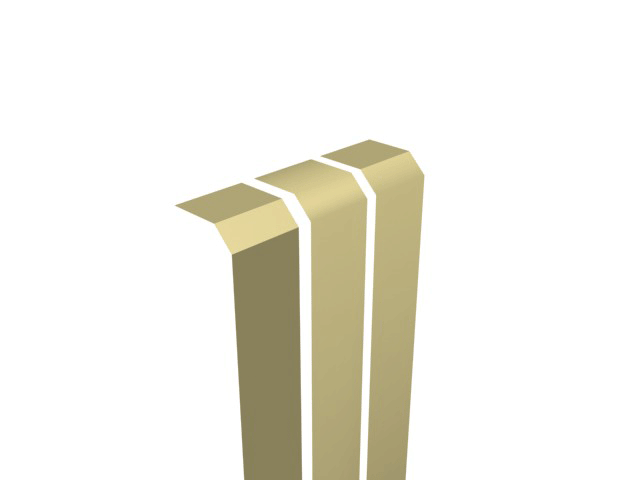
From left to right: Faceted, Smoothed and on the third one, you can see one edge more defined, that edge has been split.
Useful links
ISI Tools (Public development tools V2)
GMT2 Importer
GMT2 Wizard
Please read the documentation with both of the downloads. Install the ISI tools first. 3dsimed is necessary for converting GMT files.
Exporting using the ISI tools
- Multi-Sub
Open the material editor (Shortcut "M"), and select a Multi-Sub material.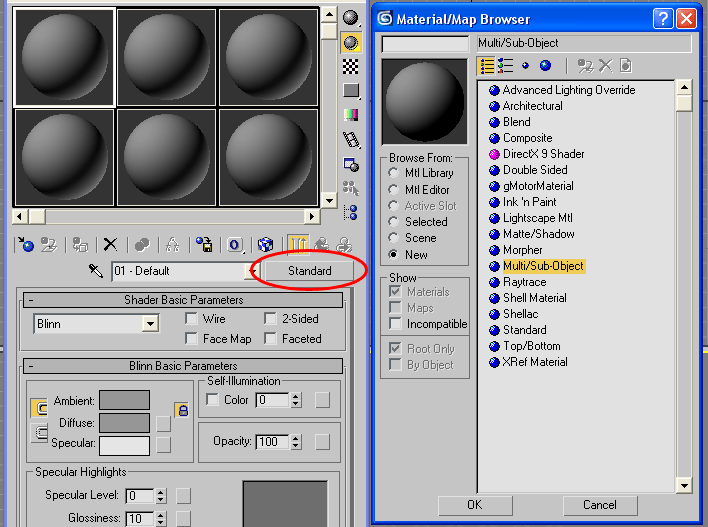
- GMat - GMotor Material
On the first Sub-Material, select a GMAT (GMotor Material)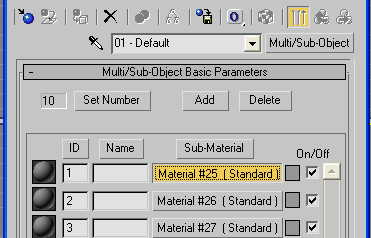
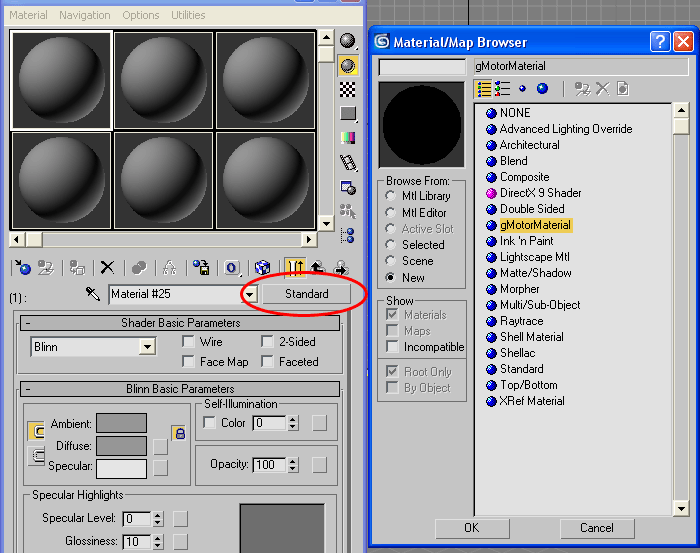
- Textures
Select the first GTex slot(of the first sub material). Don't worry about all these material properties, there's no benefit for us GTR2 modders, just use 3dsimed to do the materials.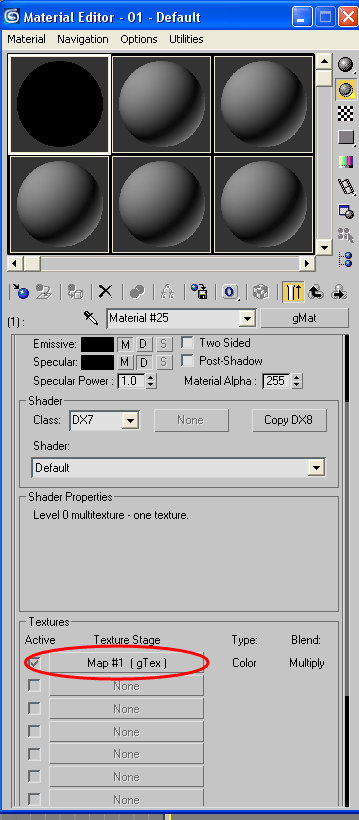
Select a texture you want.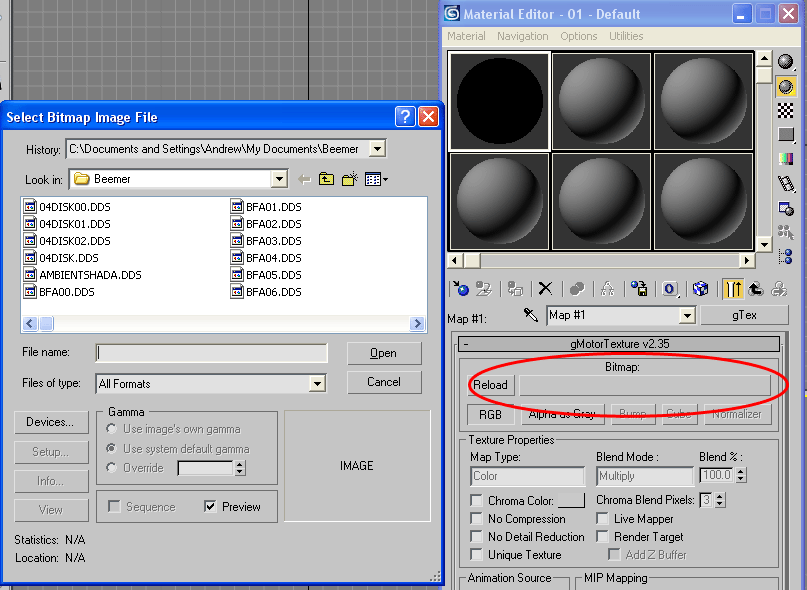
- Number of Materials
Now set the number of materials to however many you want, you should only have as many that you need, if you have some with undefined textures, it will not export.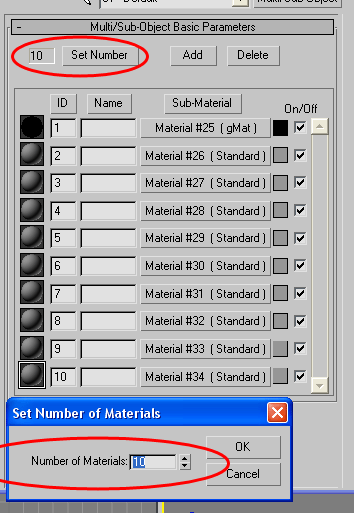
- Exporting
In the utilities tab, select the GMT Converter. In the GMT output section, select the output directory, then select what you want to export (press "H"), then click "Do mesh"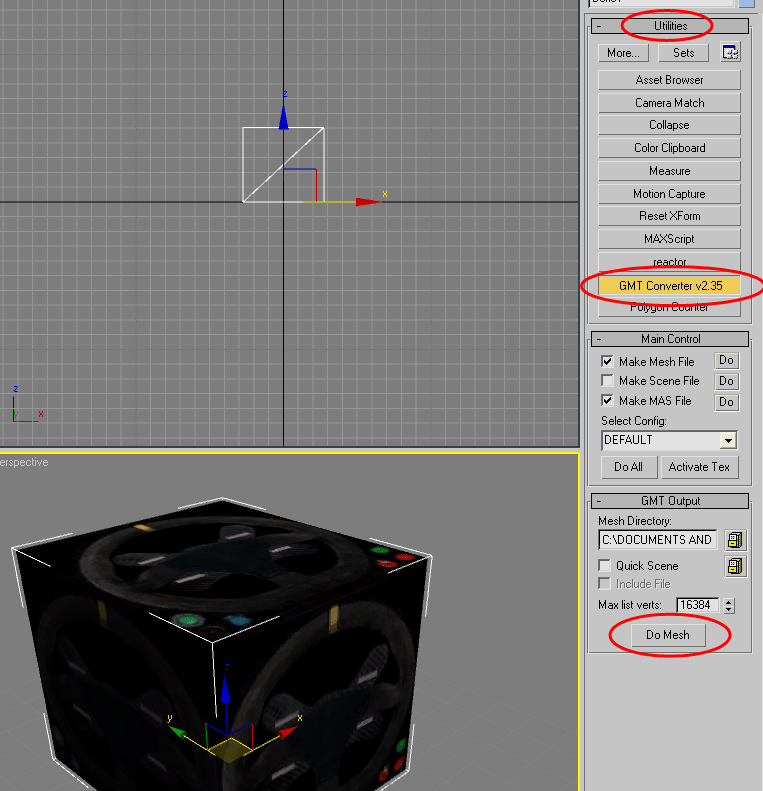
You will then have to sort out your materials in 3Dsimed, but it is quite self explanatory, if in doubt, refer to the original cars.
Importing using the GMT importer
NOTE: This will only import rFactor GMT's, you need to convert GTR2 meshes with 3dsimed/Zmodeler.
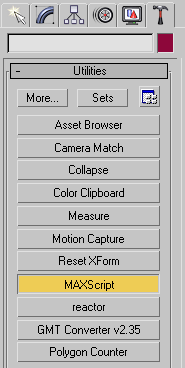
Click the utilities tab, then click the MAXScript button
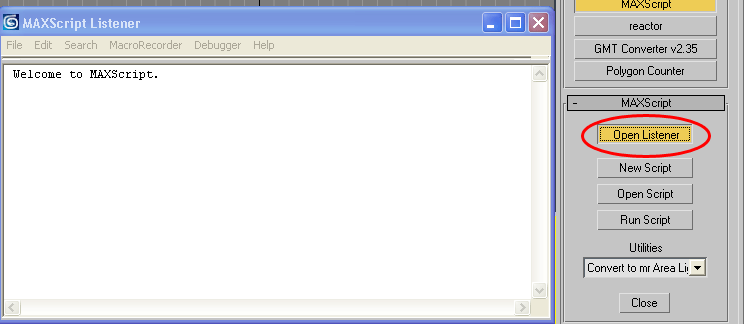
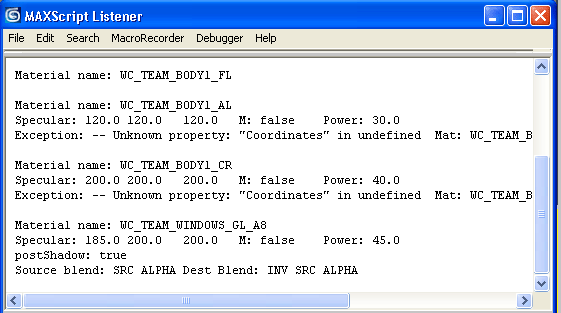
Click the Open Listener button, this will show you what the script is doing (To prove to you that your 3ds max hasn't crashed)
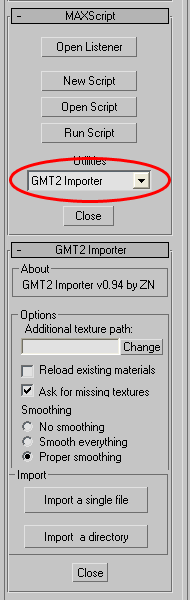
Select GMT Importer in the dropdown menu
Click either import single file or import a directory. It's best to have the textures in the same directory
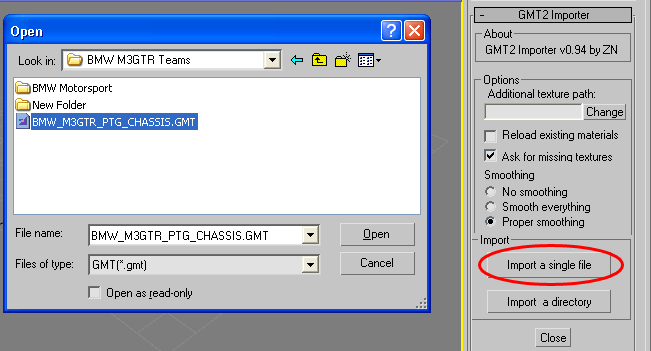
The listener shows what the script is doing, material properties etc.
Help with the GMT Importer can be found here
Usable Material Names
Where "My_Car" is the car manufacturer
texture: my_car_body1.dds
usable materials for mesh (for different properities):
wc_team_body1_al
wc_team_body2_fl
wc_team_body3_pa
wc_team_body4_pl
texture: my_car_body2.dds
usable materials for mesh (for different properities):
wc_team_body2_al
wc_team_body2_fl
wc_team_body2_pa
wc_team_body2_pl
texture: my_car_cpit01.dds
usable materials for mesh (for different properities):
wc_cpit_01a
wc_cpit_01b
wc_cpit_01c
wc_cpit_01d
wc_cpit_01e
texture: my_car_cpit02.dds
usable materials for mesh (for different properities):
wc_cpit_02a
wc_cpit_02b
wc_cpit_02c
wc_cpit_02d
wc_cpit_02e
texture my_car_cpit03.dds
usable materials for mesh (for different properities):
wc_cpit_03a
wc_cpit_03b
wc_cpit_03c
wc_cpit_03d
wc_cpit_03e
texture: my_car_windows.dds
usable materials for mesh (for different properities):
wc_team_windows_fl_a8
wc_team_windows_gl
wc_team_windows_gl_a8
wc_team_windows_pl